Bid for Powers Fight Controls Overview
PC and mobile input patterns for bidding lobbies and battlegrounds fights.
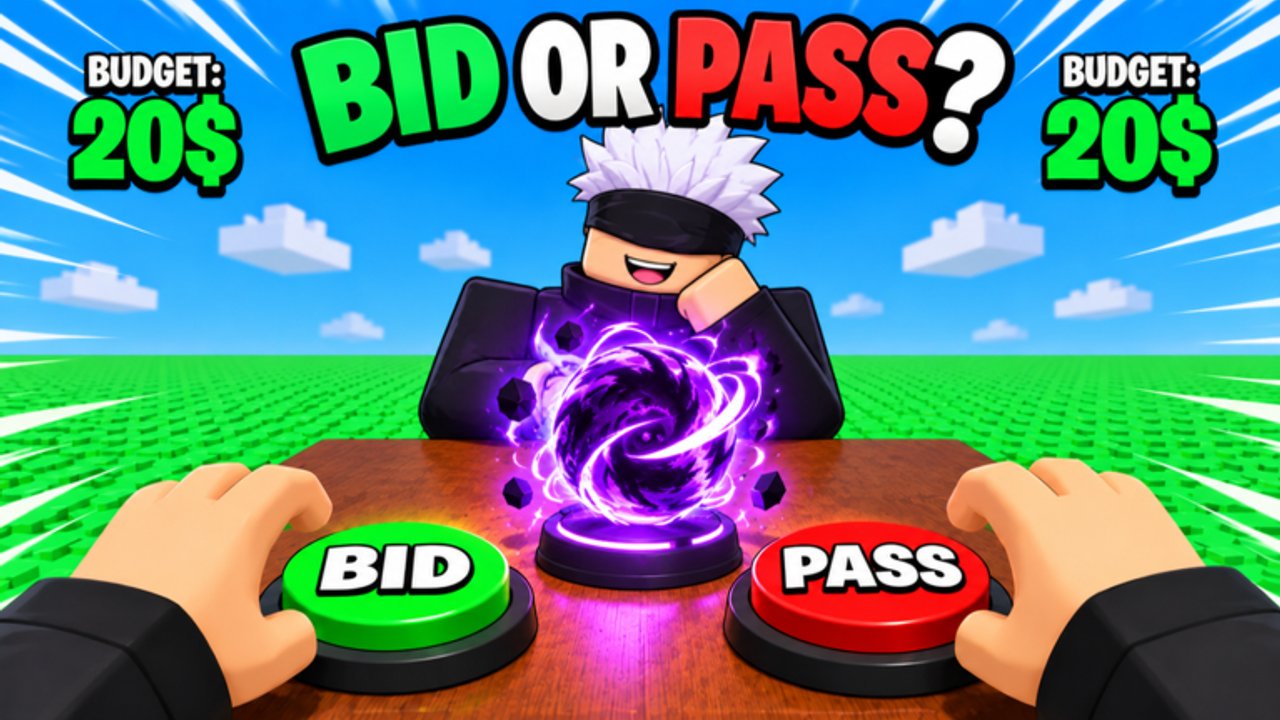
Clean inputs win auctions’ aftermath. Bid for Powers Fight is a Roblox action battlegrounds title: you bid for abilities, then fight with punches, movement tech, and equipped powers across 1v1, 2v2, Party, and Free For All. This page explains typical PC and mobile control patterns so you can practice deliberately - and reminds you that UI and keybinds can update, so always verify bindings in the in-game settings menu after patches.
Pair this overview with Getting Started for the first-hour loop and Combat Modes for how inputs feel in each queue.
Important disclaimer about changing UI
World PIECE Studio can rename buttons, move HUD elements, or adjust mobile tap targets at any time. Treat every label below as a pattern guide, not a forever screenshot. If something in this article disagrees with your client:
- Open the in-game settings or controls panel.
- Note the current binding for punch, block (if present), abilities, dash/jump, and menu toggles.
- Remap accessibility options if you play on a converted keyboard, controller overlay, or small phone.
- Play one 1v1 to confirm muscle memory before entering a Free For All portal lobby.
When the live game changes, trust the live game.
PC control patterns (typical battlegrounds layout)
Many Roblox battlegrounds experiences converge on a familiar scheme. Expect something close to:
| Action | Common PC pattern | Notes |
|---|---|---|
| Punch / M1 | Left mouse button | Primary string starter; timing matters more than spam |
| Movement | WASD | Strafe while charging approaches |
| Camera | Mouse movement | Keep rivals centered before ability confirms |
| Jump | Space | Combine with dashes if your kit includes them |
| Abilities | Number keys (1-4) or Q/E/R/F style | Depends on how many powers you equipped from bidding |
| Block / guard | Often F or a held input | Only if the current build includes a defensive bind |
| Emote / extra | R or a menu radial | Cosmetic; do not bind over a combat key by accident |
| Menus / bids | UI buttons + mouse | Auction boards are usually click-driven |
Your exact map may differ. The skill is not memorizing a wiki table - it is knowing which finger owns M1, which keys own each equipped power, and which key is your panic escape.
PC practice drills
- In a quiet area or early 1v1, press each ability once while standing still, then once while moving.
- Practice punch - ability confirms so you stop whiffing finishers.
- Rebind any key that collides with Roblox screenshot or push-to-talk habits on your machine.
Mobile control patterns
Mobile players usually see on-screen joysticks and skill buttons:
| Action | Common mobile pattern | Notes |
|---|---|---|
| Move | Left virtual joystick | Keep thumb travel small to reduce drift |
| Camera / look | Right-side drag | Separate look from skill taps when possible |
| Punch | Dedicated attack button | Tap rhythm beats panic mashing |
| Abilities | Skill buttons on the right cluster | Learn positions after every new bid win |
| Jump / dash | Extra buttons near the attack cluster | Easy to miss during FFA chaos |
| Menus / bids | Top or side UI | Zoom attention back to the auction board between fights |
Mobile-specific tips
- Increase touch target comfort in device settings if your fingers miss skill 3 constantly.
- After winning a new power in an auction, look at the HUD before you queue - new buttons shift clusters.
- Prefer modes with slightly slower pace (often 1v1) while you remap muscle memory, then return to Party or Free For All.
- Consider a clip-on trigger or higher framerate device if input lag makes ability confirms feel late; hardware cannot replace practice, but it can remove false blame.
Shared habits for every device
Before you bid
Know how many skill slots you can actually use under pressure. Winning four abilities means nothing if two binds sit in awkward reach. Read How to Bid with your hands in mind - a slightly weaker power on a comfortable key can beat a stronger power you never press in time.
Before Free For All
Armor stacking (+1 per kill) rewards clean confirms and escapes. Bind awareness matters more when third parties arrive. See Combat Modes for portal and stacking tactics.
After daily claims
Do not skip the settings panel on reward day just because you are excited to spin. Daily Rewards first, controls check second, auction third is a stable login order.
Building muscle memory around your fighting style
Custom fighting styles mean your optimal key order changes when the kit changes. After each major auction win:
- Open the inventory or loadout UI and confirm equip order.
- Speak the new rotation out loud once (punch, skill A, skill B).
- Run a short 1v1 lab.
- Only then take the kit into 2v2, Party, or Free For All.
Archetype pages on the Powers Tier List help you decide what the rotation should be; this controls page helps you make that rotation reachable.
Accessibility and comfort
- Lower camera sensitivity if you overflick and miss punches.
- Raise it slightly if you cannot track mobile jumpers in Party modes.
- Use headphones for audio cues if the mix includes ability tells.
- Take breaks - hand strain makes late FFA rounds sloppy regardless of armor stacks.
Troubleshooting “my skills won’t fire”
- You are on cooldown and mashing through the animation lock.
- The ability was unequipped after a new bid shuffled the loadout.
- A patch moved the bind and you never reopened settings.
- Mobile UI scaled and your thumb hits the gap between buttons.
- You are in a menu or auction overlay that still captures input.
Work top to bottom before assuming a bug. Then check studio notes via community posts linked from the Players Hub or About This Wiki.
Suggested learning path
- Verify live bindings in settings.
- Complete the Getting Started checklist with those bindings fresh.
- Lab in 1v1.
- Apply the same inputs under Party pressure.
- Enter Free For All only when escapes and finishers are reachable without looking down at your keyboard or thumbs for more than a heartbeat.
Controls mastery is quiet power. Auctions get the highlights; inputs decide whether those highlights land. Return here after every major UI update, and keep the Guides Hub bookmarked for the rest of the system.
Frequently Asked Questions
Quick answers for Bid for Powers Fight players.
What are the default controls for Bid for Powers Fight?
Expect typical Roblox battlegrounds patterns: mouse or tap to punch, WASD or joystick to move, and number or on-screen keys for abilities. Always confirm the live list in settings.
Do PC and mobile use the same binds?
Actions match, layouts differ. Mobile relies on virtual joysticks and skill buttons; PC uses mouse and keyboard. Recheck both after updates.
Why did my ability button stop working?
Common causes are cooldowns, unequipped loadouts after a new bid, UI scale changes on mobile, or a patch that remapped keys.
Should I change controls before Free For All?
Yes if any escape or finisher sits on an awkward key. Armor stacking lobbies punish delayed reactions.
Where do I go next after learning controls?
Follow Getting Started for the first-hour loop, then How to Bid and Combat Modes.